?.value || $$src)



<p>
<img>
Author
Abstract
Notes
Title
Subtitle
Read Time: < mins
article here
Patent pending
Book Authors:
TOC/RSS
Author Line Preview
Author line
Abbreviated
Cleanup text 💅
Find/clean up hyphens
Find/clean up endnotes (1)
Sanity Checks 🧠
The article is now looking pretty, I'm ready to upload to AFPIMS™ (The best CMS in the world)You talking
Missing Journal and/or Edition
Make folders
Make folder(s) to upload all your stuff on the AFPIMS™ file manager using this
Upload assets
Upload your images, PDF, and mp3 to those folder(s)
Link images
After uploading, make sure each image is linked in its corresponding "Live Image Source" field in the article editor. Toggle X-ray on 
Link other stuff
Tell me where you uploaded this stuff Protip
Missing Journal and/or Edition
'Details' tab
Add all this stuff on the 'Details' tab
_

Make sure this is unchecked!
I'm watching you...
Set layout
Advanced > Appearance > Layout
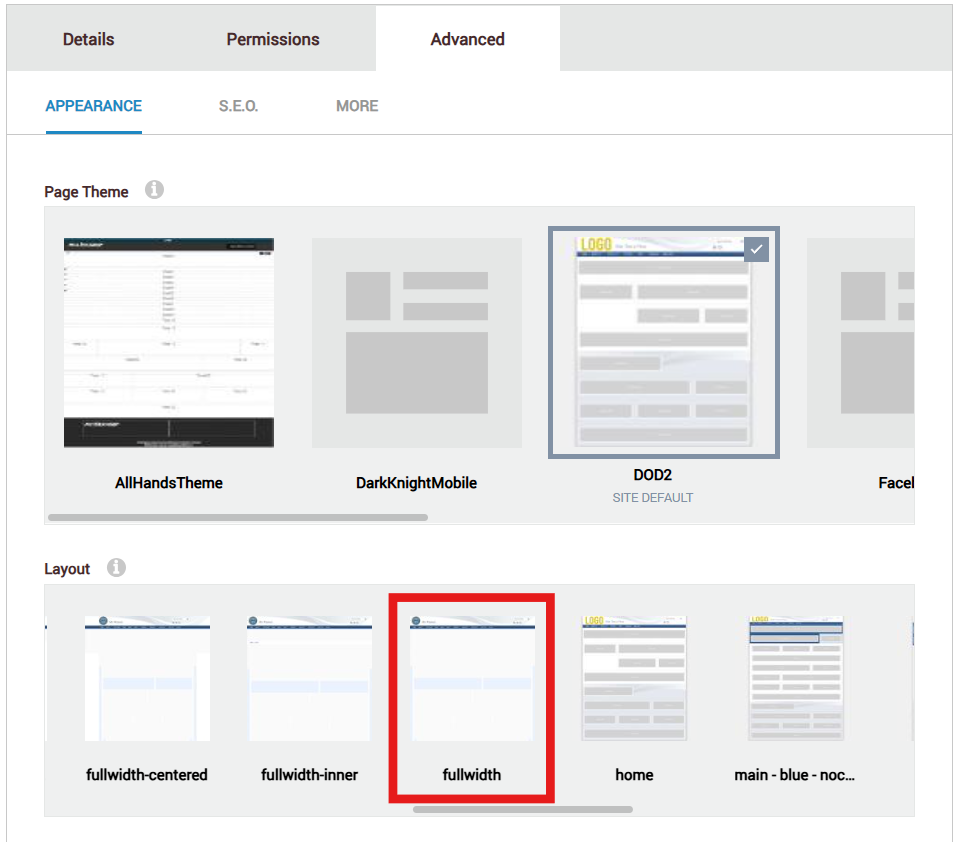
Save page
Now save the page

Copy links
You should now be brought to the article page proper. Let's copy some links now
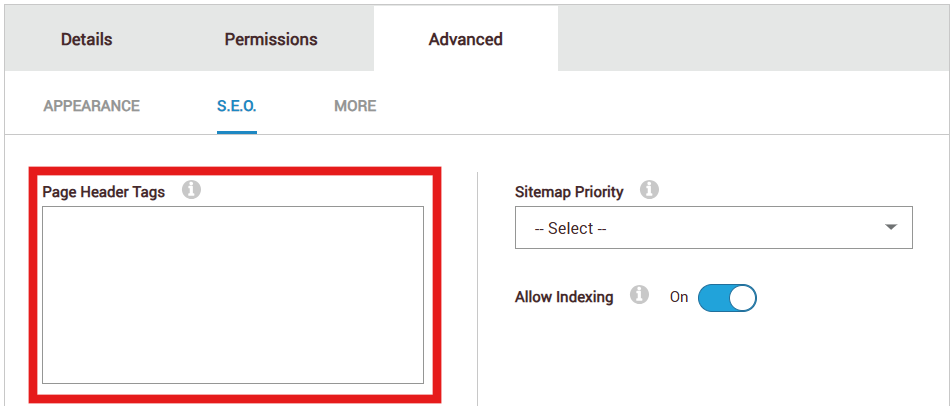
Page Header Tags & AEO
Now Add Page Header Tags to your article (click on the Pages thing on the left and let it cook. it will bring up ur page soon)
Pages > (This article page) > Advanced > S.E.O.
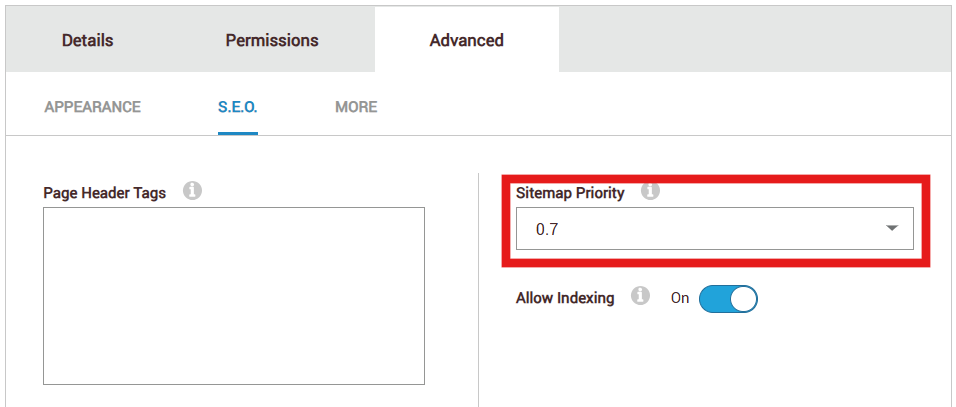
Priority
Don't forget to set the priority (0.7 is what's up)
Save
Save your changes

Delete extra footer
Now edit the article page proper
Nuke that extra footer at the very top (lol)
Add Journal Header module
Now let's add that Journal Header thing you see on every article
Add an Existing Module using
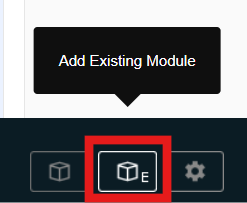
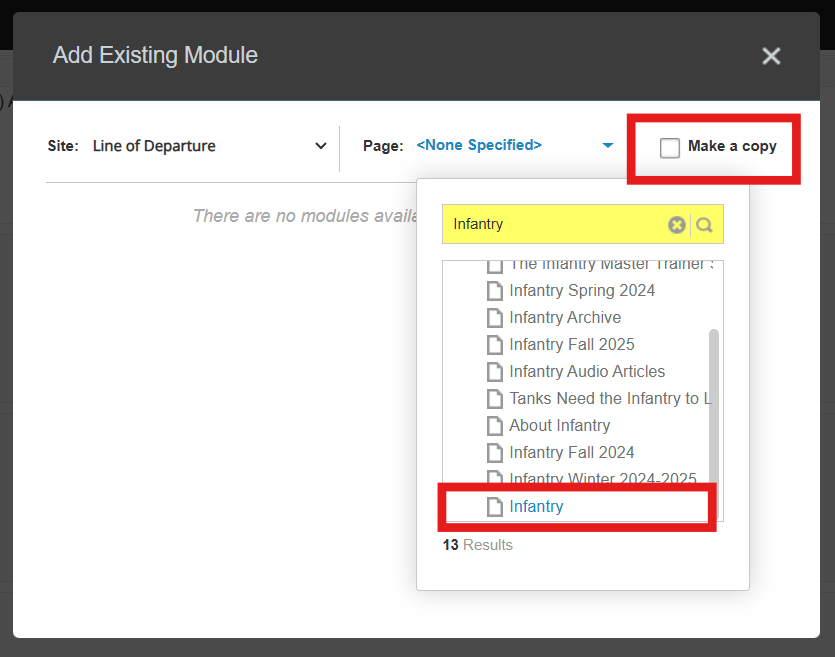
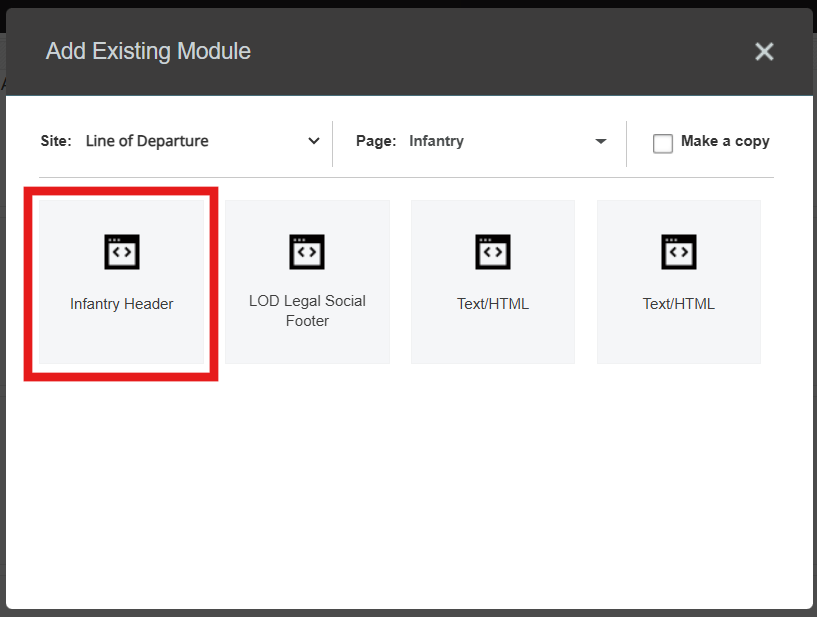
Drag that where it should go (like the top just below the LD Navbar)
Paste in the article
Nice. This article is now officially ready to be plopped into the module on the article page
Get TOC module
Grab the current TOC module source code
Paste in new TOC module
Now replace that with this updated TOC
Easily update the previous article's nav
Get Previous Article module
Grab the previous article module source code
Paste in new Previous Article module
Now upload this updated previous article module
Easily update the next article's nav
Get Next Article module
Grab the next article module source code
Paste in new Next Article module
Now upload this updated next article module
Update Journal RSS feed
Update Landing Page
Give me the up-to-date RSS feed
(Here's a link to )
!! FOOTGUN !!
It will generate the top and bottom modules for the Journal Landing Page based off of that
Add an Article to RSS Feed
Update LD Homepage Proper
Give me the up-to-date RSS feed
(Here's a link to homepage.xml)
!! FOOTGUN !!
It will generate the top and bottom modules for the LD Homepage based off of that
Mark on Sharepoint
Purge these URLs on the Purge Page.
Then you can just plop this into Excel or whatever.
And then this for the Michael sharepoint tracker thing
Send this to your accountabilibuddy (peer review person)